Web Install
This page is for first-time users installing the PilotDeck Web version. We recommend the one-line install path first; source-based setup belongs in the development guide.
Requirements
Before you start, make sure you have:
- macOS/Linux for the one-line install script. Windows is currently supported for developer mode only.
- A working network connection.
- An available LLM API key.
The install script checks Git and Node.js. If a suitable Node.js version is not available, it will try to install Node.js 22 through fnm (Fast Node Manager).
One-Line Install
Open a terminal, copy the command below, and press Enter:
curl -fsSL https://raw.githubusercontent.com/OpenBMB/PilotDeck/main/install.sh | bash
If the terminal asks for a password, enter your Mac login password and press Enter. Characters are not displayed while typing; this is normal terminal behavior. This is usually needed to create the /usr/local/bin/pilotdeck command link.
The script installs PilotDeck to:
~/.pilotdeck/app/
The config file is located at:
~/.pilotdeck/pilotdeck.yaml
The command-line entry point is:
pilotdeck
Configure an LLM Provider
After installation, the browser opens the setup page automatically. If it does not open, visit:
http://localhost:3001
You will see the LLM Provider Setup page. The configuration flow is shown below:
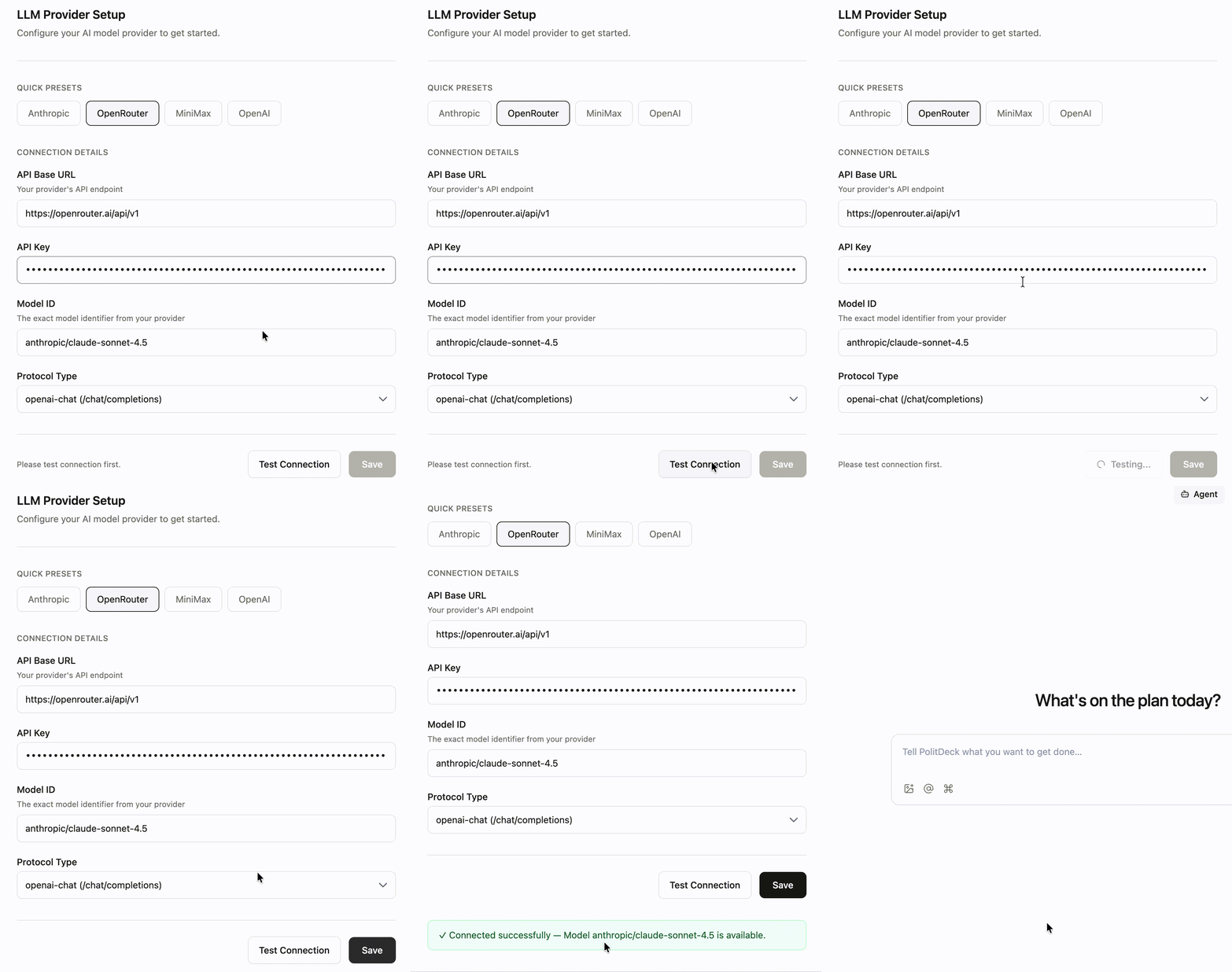
Step 1: Choose a Preset
Common provider presets are available at the top of the page:
- Anthropic
- OpenRouter
- MiniMax
- OpenAI
After you click a provider, API Base URL, Model ID, and Protocol Type are filled automatically.
If your provider is not listed, such as DeepSeek, skip the preset and fill in the fields manually.
Step 2: Fill in API Information
| Field | Description | Example |
|---|---|---|
| API Base URL | Provider API endpoint | https://api.deepseek.com/v1 |
| API Key | Your provider secret key | sk-xxxxxxxx |
| Model ID | Model name or identifier | deepseek-chat |
| Protocol Type | Protocol type | OpenAI-compatible providers usually use openai-chat |
Step 3: Test the Connection
Click Test Connection.
- If you see
Connected successfully, the connection works. - If you see a red error, check the API key, network, provider balance, and API base URL first.
Step 4: Save
After the test passes, click Save. The configuration is written to:
~/.pilotdeck/pilotdeck.yaml
Then the page enters the main interface.
Verify Installation
After entering the main interface, send a message in the bottom input box. If the AI replies normally, installation and configuration are complete.
Daily Usage
| Action | Method |
|---|---|
| Start | Run pilotdeck in a terminal |
| Use | Visit http://localhost:3001 in the browser |
| Stop | Press Ctrl + C in the terminal running the service |
| Update | Run the one-line install command again |
Running the install command again updates the code in ~/.pilotdeck/app/ and does not overwrite existing configuration.
Troubleshooting
Test Connection Fails
Common causes include an incorrect API key, unreachable network, insufficient provider balance, or a missing /v1 in the API base URL.
pilotdeck: command not found
The installer may have placed the command in ~/.local/bin/. Add it to your shell path:
echo 'export PATH="$HOME/.local/bin:$PATH"' >> ~/.zshrc && source ~/.zshrc
# Then restart
pilotdeck
Port Conflict
Example error:
[CONFLICT] Port 3001 already in use by PID 12345.
or
[CONFLICT] Port 18080 (proxy) already in use by PID 76286.
Reason: A previous PilotDeck process did not exit completely, or another program is using the same port. PilotDeck uses two ports:
| Port | Purpose |
|---|---|
| 3001 | Main service (Web UI) |
| 18080 | AI proxy (forwards requests to LLM providers) |
Solution:
# Force-kill the processes using these ports (recommended)
kill -9 $(lsof -i :3001 -t) 2>/dev/null
kill -9 $(lsof -i :18080 -t) 2>/dev/null
# Then restart
pilotdeck
or
# Start with another main service port
pilotdeck --port 8080
# Then visit http://localhost:8080
After using PilotDeck, press Ctrl + C in the terminal to exit cleanly. Avoid force-closing the terminal directly to reduce port conflicts.
Browser Does Not Open Automatically
Visit manually:
http://localhost:3001
Uninstall
Remove only the app and command links:
rm -rf ~/.pilotdeck/app
rm -f /usr/local/bin/pilotdeck
rm -f ~/.local/bin/pilotdeck
To remove the configuration as well:
rm -f ~/.pilotdeck/pilotdeck.yaml
Deleting the entire ~/.pilotdeck/ directory may remove configuration, data, and history. Make sure you no longer need them before doing so.